Ground Control Station (GCS) allows you to manually control a drone using SkyTrack when compatible hardware is available.
This mode is intended for basic flight operations. Mission-based control will be introduced in a future update.
Before you begin
Before using Ground Control Station, make sure that:
- SkyTrack Client is installed and running
- Docker Desktop is running
- Your drone controller is powered on and ready
- You are operating in a safe, open environment
Connecting to the drone controller
The drone controller acts as a Wi-Fi access point that your computer must connect to.
Steps
- Power on the drone controller.
- On your computer, open the Wi-Fi settings.
- Find the Wi-Fi network broadcast by the drone controller.
- Connect your computer to this Wi-Fi network.
- Wait until the connection is stable before proceeding.
=> Once connected, your computer will communicate directly with the controller through this network.
Starting Ground Control Station
- Open the SkyTrack Client.
- Select Ground Control Station from the mode selection screen.
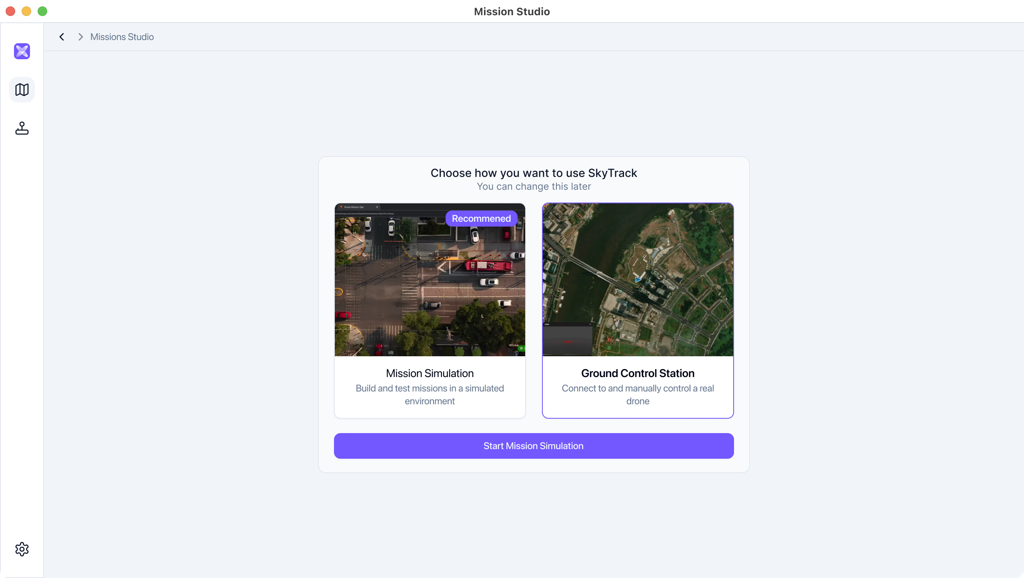
- Click Start.
- SkyTrack will attempt to establish a connection with the controller.
If the connection is successful, the Ground Control Station interface will be displayed.
Basic flight controls
In the current version, Ground Control Station supports manual flight operations only.
You can:
- Take off the drone
- Land the drone
Mission-based or automated flight control is not available in this version. (Jan 2026) Always verify the drone’s status before performing any action.
Safety guidelines
Operating a real drone requires careful attention.
Please follow these safety guidelines at all times:
- Keep the drone controller within reach during operation
- Be ready to take manual control in case of unexpected behavior
- Ensure there are no people or obstacles nearby
- Do not rely solely on software controls for emergency situations
- Follow all local laws and regulations related to drone operation
If anything feels unsafe, land the drone immediately.
If the drone does not respond
If the drone does not respond to commands:
- Confirm your computer is connected to the controller’s Wi-Fi
- Check that the controller is powered on
- Restart Ground Control Station and try again
- If issues persist, stop the operation and ensure the environment is safe
Important notes
- Ground Control Station is intended for direct, manual control
- Automated mission control will be added in a future update
- Always prioritize safety over testing or experimentation
What’s next
If you want to build and test autonomous behaviors:
- Switch to Mission Simulation mode
For setup issues or errors, refer to the Troubleshooting section.