This chapter guides you through creating or importing a mission and running it in simulation for the first time. By the end of this section, you should have a mission running successfully in the SkyTrack simulation environment.
Before you begin
Make sure that:
- SkyTrack Client is installed and opened successfully
- You are signed in (via the web portal)
- Docker Desktop is running
- The simulation environment setup has completed without errors
If you haven’t completed these steps, please refer back to the Install & Setup chapter.
Entering Mission Simulation
When you open the SkyTrack Client:
- Select Mission Simulation from the mode selection screen
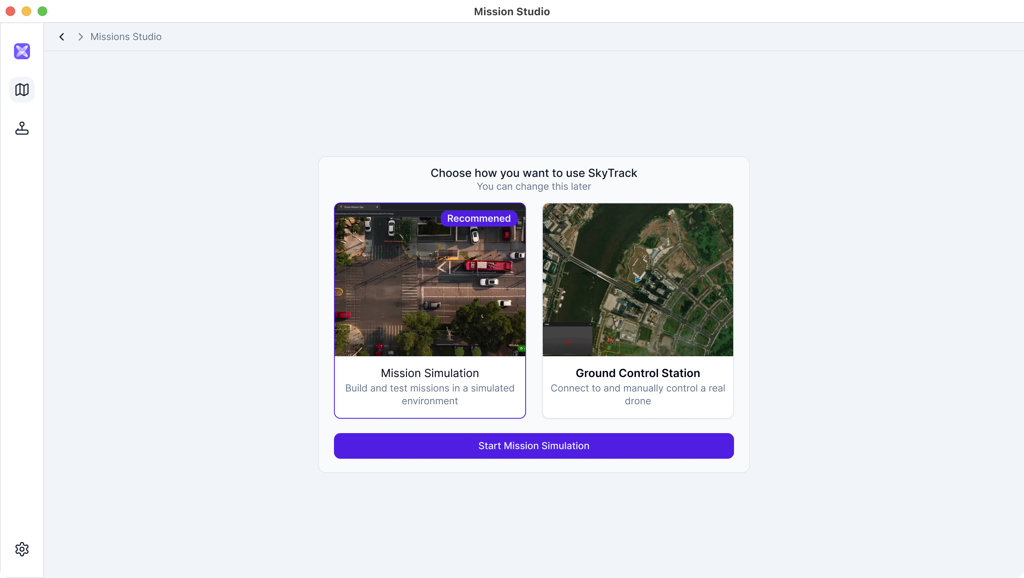
- Or changing the mode if already in the Ground control station using the button on the top left of the screen

- Click Start

SkyTrack will load the simulation workspace.
Understanding missions in SkyTrack
A mission defines how a drone behaves during a simulation, such as:
- Where it starts
- How it moves
- What actions it performs
In this version, missions are managed individually. Project-based organization will be introduced later.
Option 1: Create a new mission
Creating a new mission is the recommended way to get started.
Steps
- From the Missions screen, click New Mission
- SkyTrack will open a blank mission in the simulation workspace
- Begin configuring your mission as needed
Once created, the mission is ready to be simulated.
Option 2: Import a mission from a local file
If you already have a mission file, you can import it directly.
Steps
- From the Missions screen, click Import
- Select a mission file from your local machine
- Confirm the import
After import, the mission will open in the simulation workspace.
Notes
- Only supported mission file formats can be imported (JSON)
- If an import fails, verify that the file format and structure are valid
Running the simulation
Once a mission is open:
- Review the mission setup
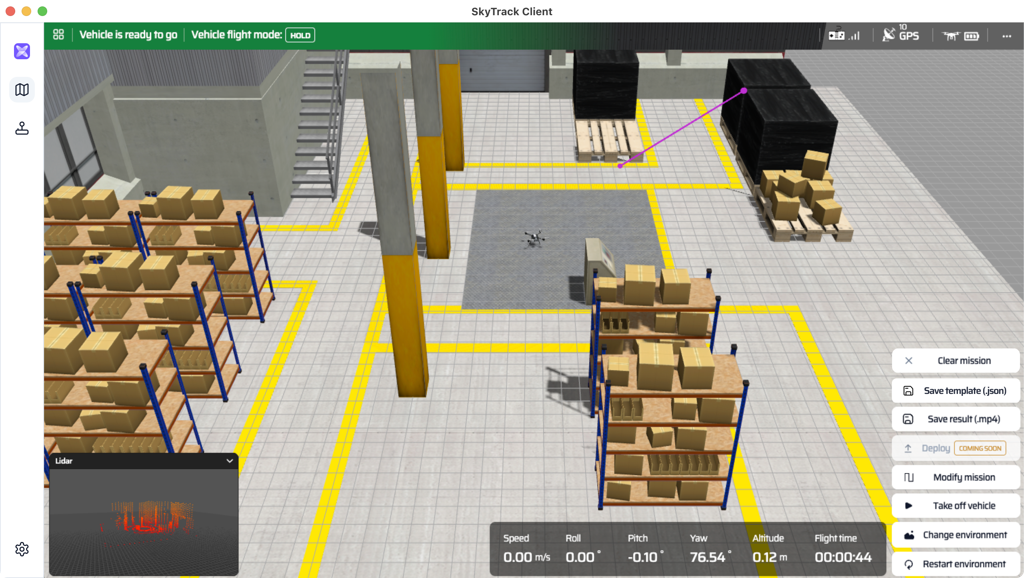
- Start the simulation using the available controls
- Observe the drone behavior within the simulated environment
Simulation allows you to test and iterate safely without using real hardware.
During simulation
While the simulation is running, you can:
- Observe mission execution
- Monitor system behavior
- Stop or restart the simulation if needed
Simulation performance may vary depending on your system resources.
If the simulation does not start
If you encounter issues starting the simulation:
- Confirm Docker Desktop is still running
- Check that the environment setup completed successfully
- Restart the SkyTrack Client and try again
Most issues can be resolved by restarting Docker and retrying the simulation.
What’s next
After running your first mission, you can:
- Modify the mission and run it again
- Import additional missions
- Explore Ground Control Station if you have compatible hardware
For common issues and solutions, refer to the Troubleshooting section.