
SkyTrack helps you build, simulate, and test autonomous missions in a safe, local environment before working with real hardware.
This guide will walk you through the initial setup so you can run your first mission simulation smoothly.
Who this guide is for
This guide is intended for:
Engineers and developers
Researchers and technical builders
Teams exploring autonomous mission workflows
No prior experience with SkyTrack is required.
What you’ll need before starting
A supported operating system: MacOS, Windows, or Debian/Ubuntu.
An active internet connection.
Permission to install and run Docker Desktop on your computer.
An account with a supported SkyTrack sign-in provider: Google, Microsoft, GitHub, or Discord.
Install & Setup
This section covers creating your account, installing SkyTrack, and preparing the local simulation environment.
Register or sign in to SkyTrack
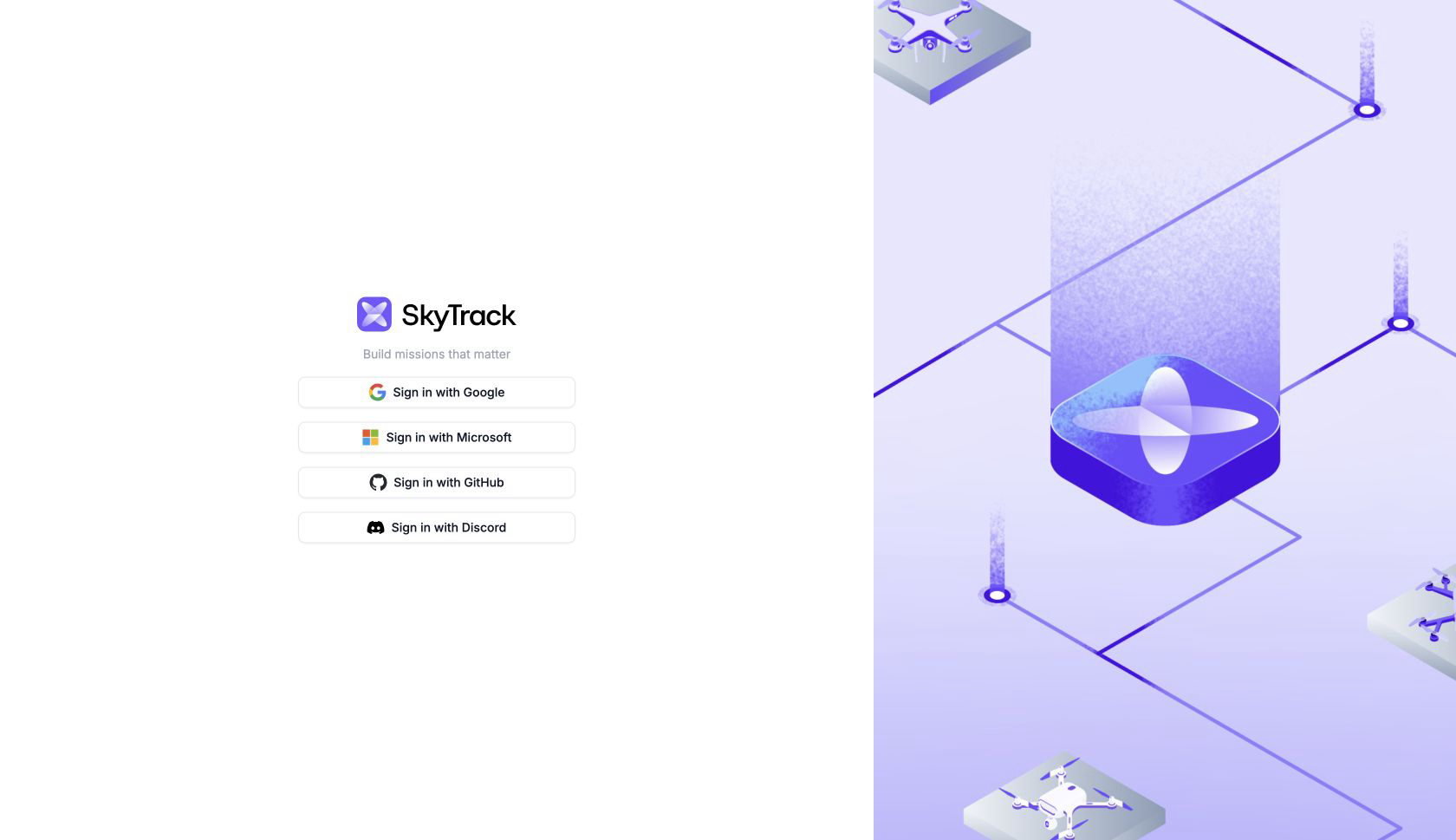
If you are new to SkyTrack, choose a supported provider and complete that provider’s account-creation flow. Otherwise, sign in with your existing provider account.
After authentication, continue to your SkyTrack workspace.
The current sign-in screen offers Google, Microsoft, GitHub, and Discord.
Download SkyTrack
The SkyTrack Desktop App is the desktop application used to work with SkyTrack and prepare a local simulation environment.
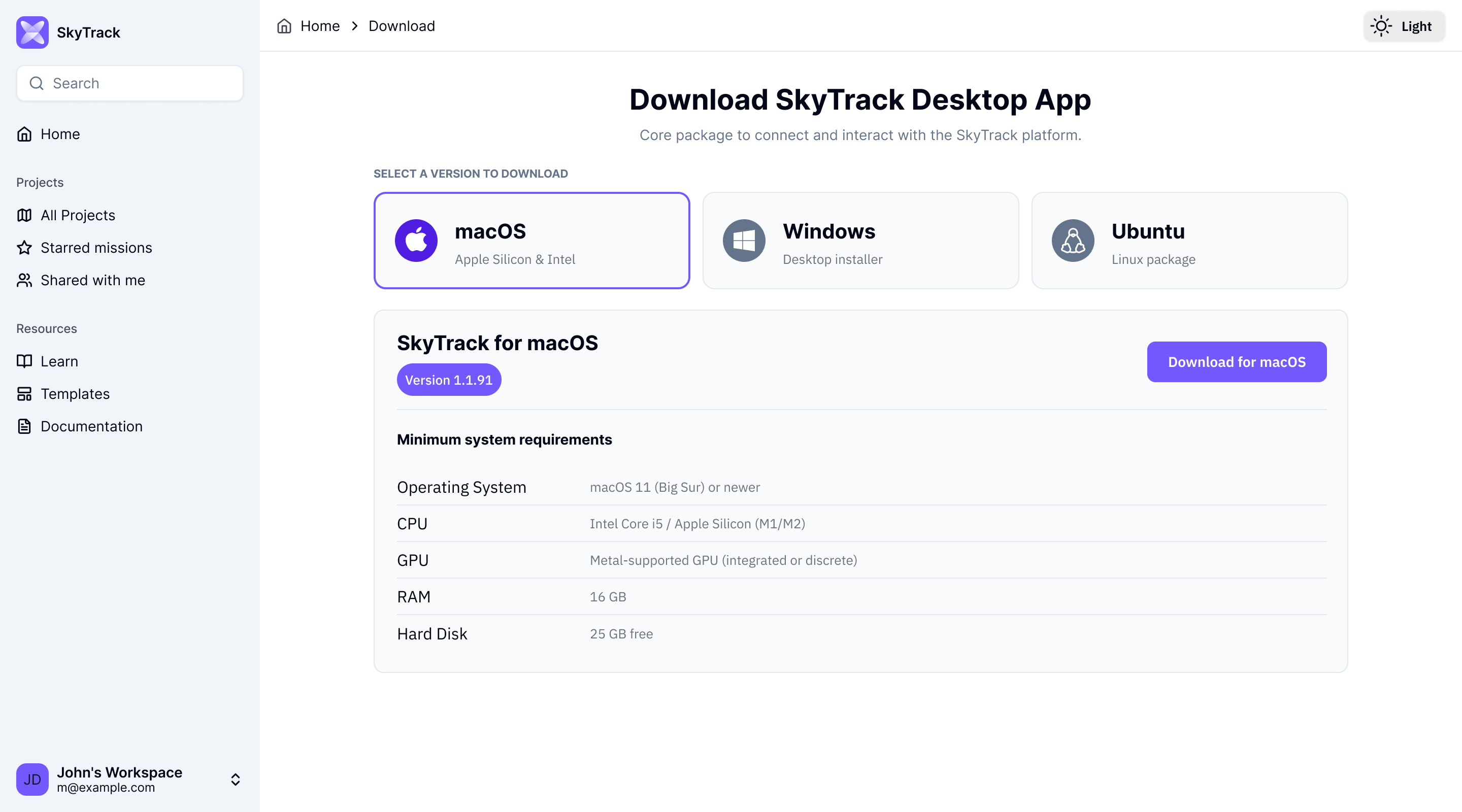
In the web platform, select Download SkyTrack.
Choose your operating system.
Select Download to get the current installer.
The download page displays the requirements for the operating system you select. For example, the current MacOS selection lists MacOS 11 (Big Sur) or newer, an Intel Core i5 or Apple Silicon (M1/M2), a Metal-supported GPU, 16 GB RAM, and 25 GB free disk space.
Install SkyTrack
Install the client you downloaded for your operating system.
MacOS: Open the downloaded installer and follow its prompts, then launch SkyTrack.
Windows: Run the downloaded installer, follow its prompts, then launch SkyTrack.
Debian/Ubuntu: Follow the installation instructions supplied with the downloaded package, then launch SkyTrack.
Installation is complete when the SkyTrack Desktop App opens without an error.
Install Docker Desktop
Docker Desktop is required for the local services used by simulation.
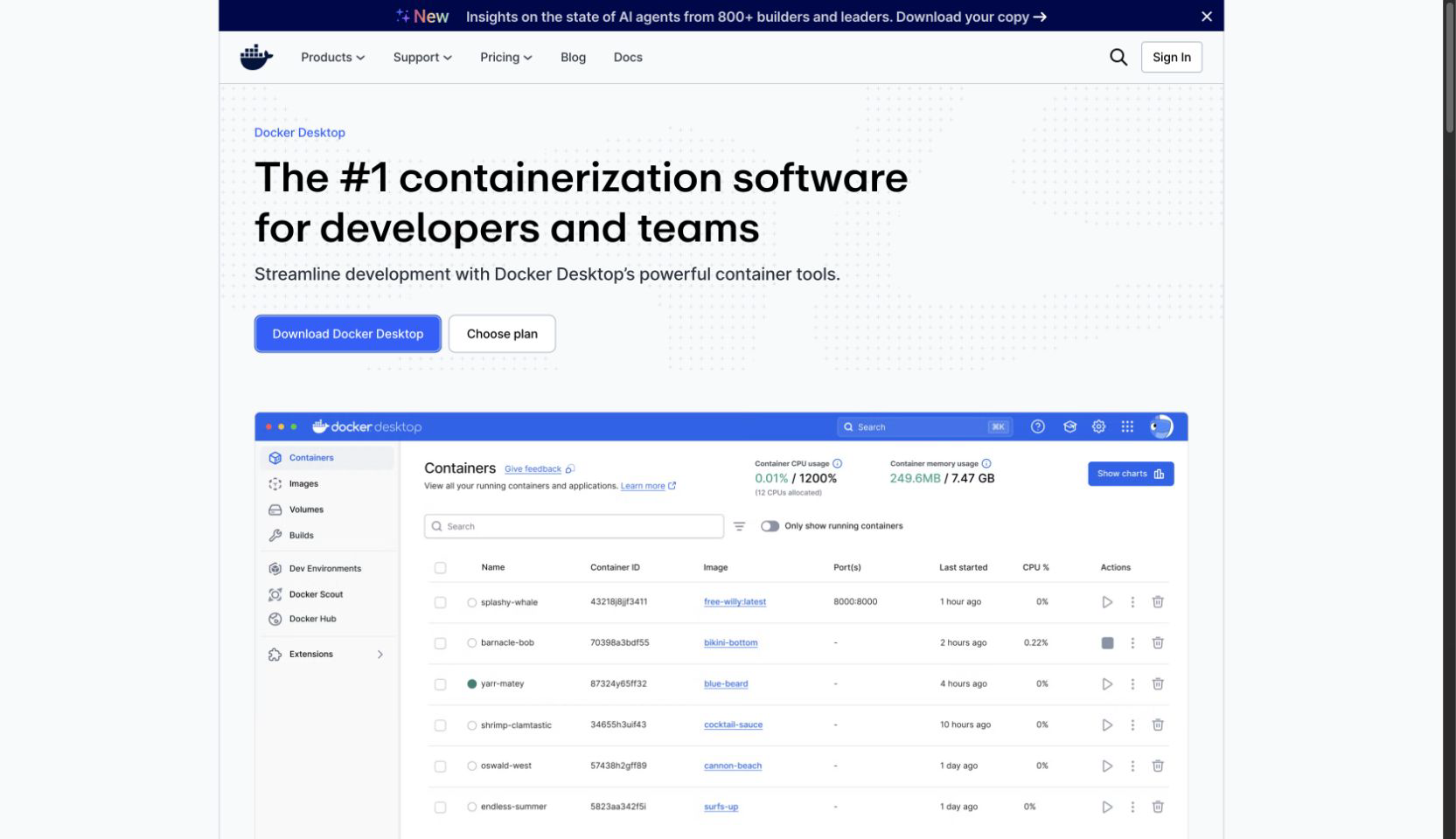
Go to the official Docker Desktop download page.
Download the version for your operating system.
Follow Docker’s installation instructions.
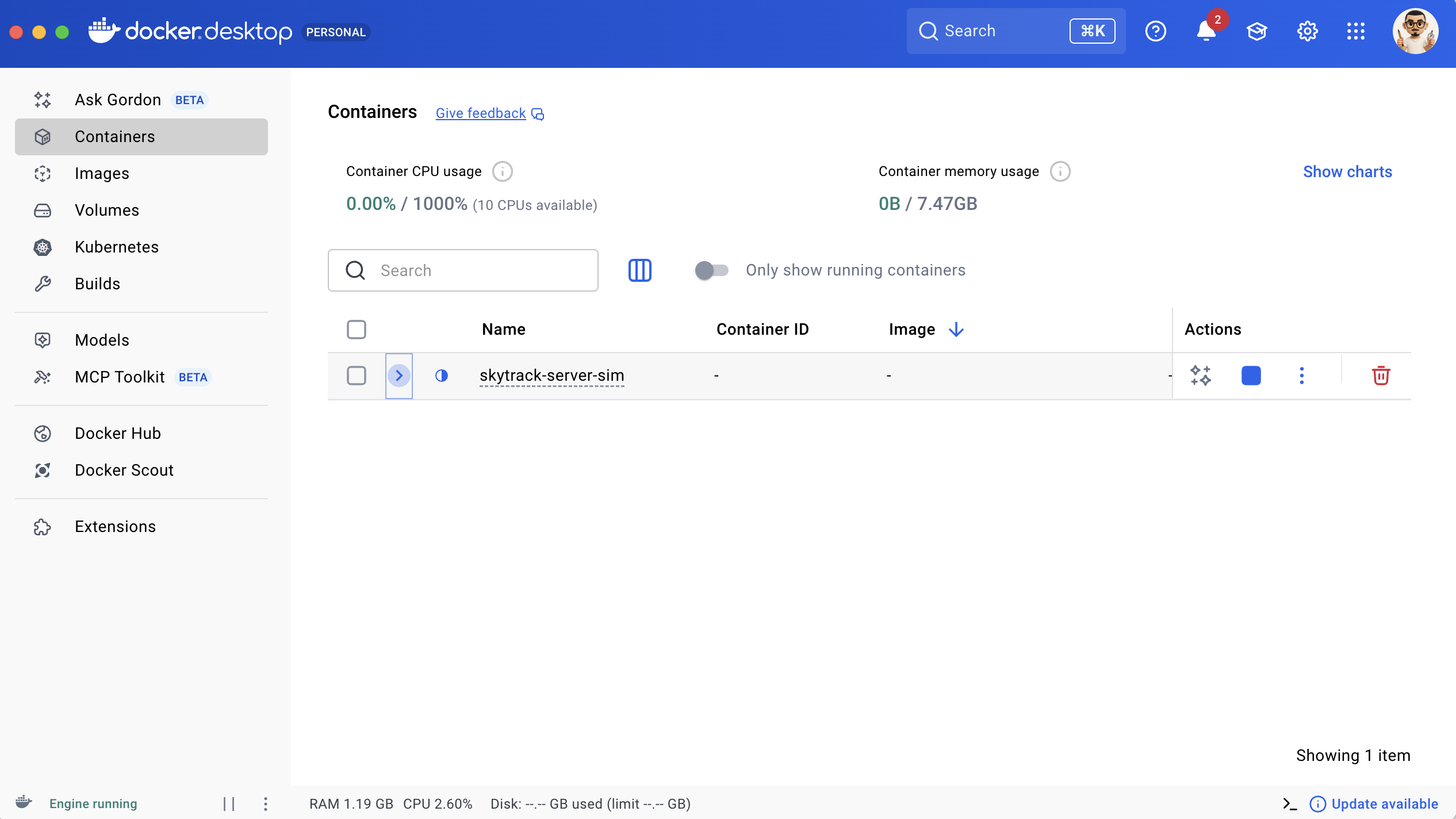
Verify Docker is running
Open Docker Desktop.
Confirm that its status is Running or Ready before continuing.
If Docker is installed but not running, start it and wait until it is ready. The SkyTrack simulation setup depends on Docker being available.
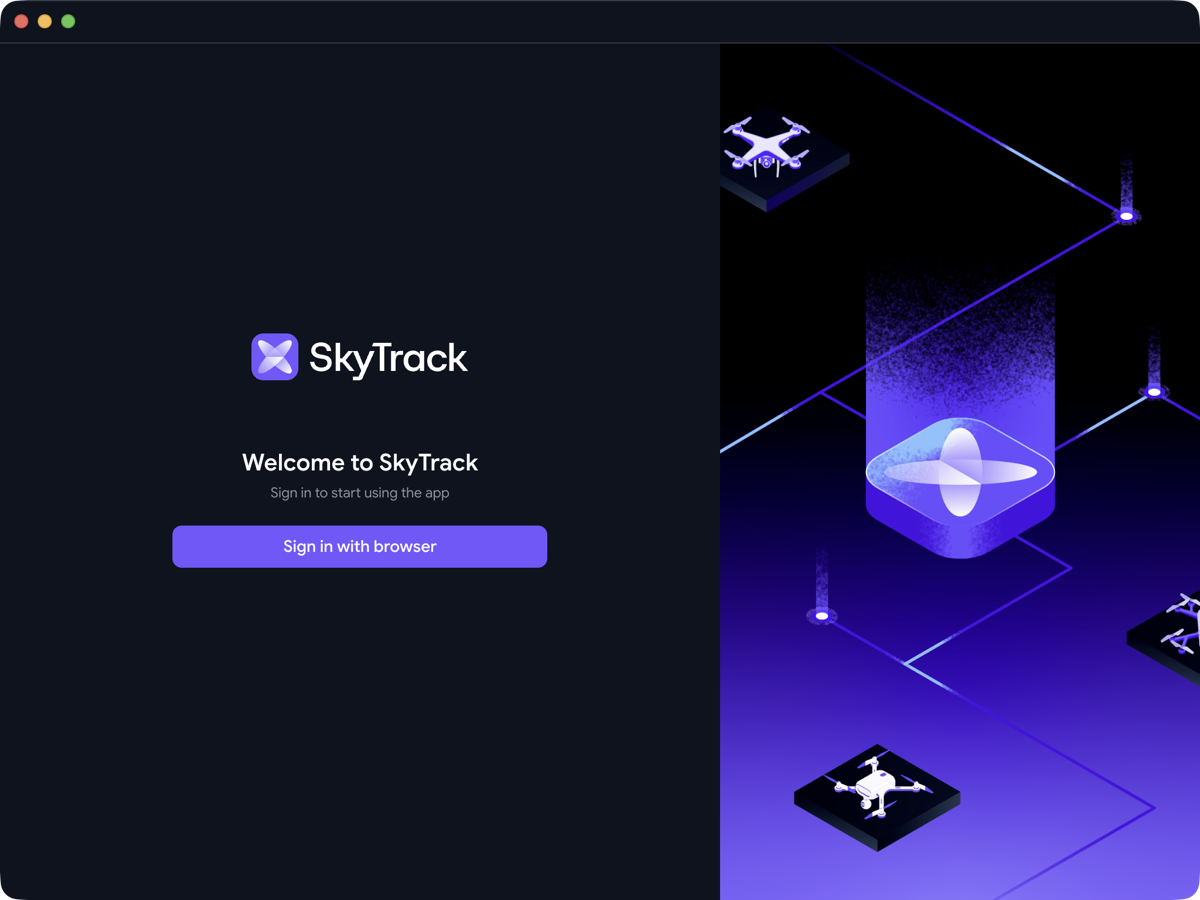
Open SkyTrack Client for the first time
Open the SkyTrack Desktop App.
Select Sign in with browser.
Complete browser authentication, then return to the client.
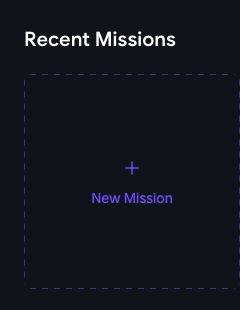
Preparing the simulation environment
From the client Home screen, select + New Mission.
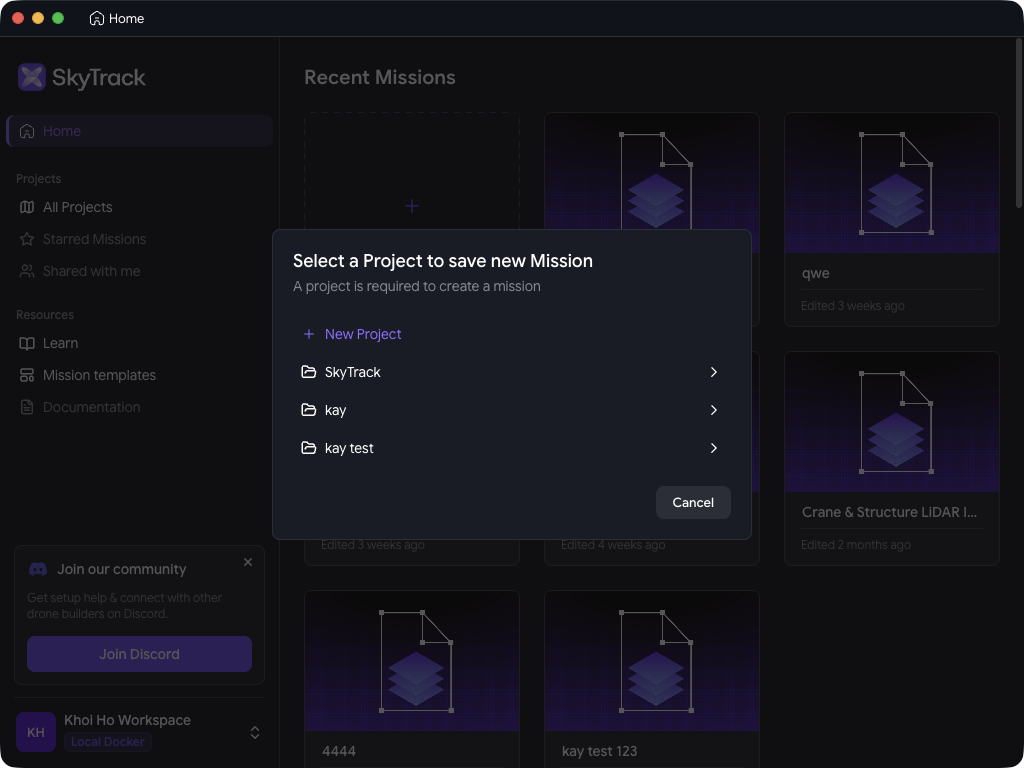
In Select a Project to save new Mission, select an existing project. If you need one, select New Project.
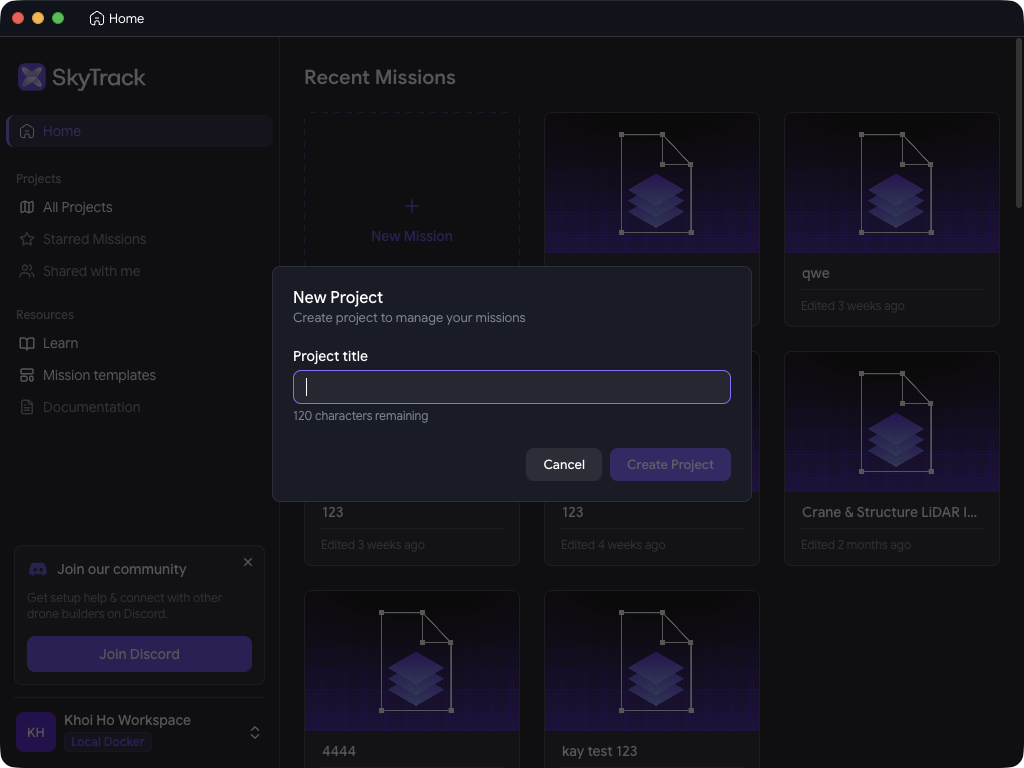
When creating a project, enter a Project title, then select Create Project.
Select the new project from Select a Project to save new Mission.
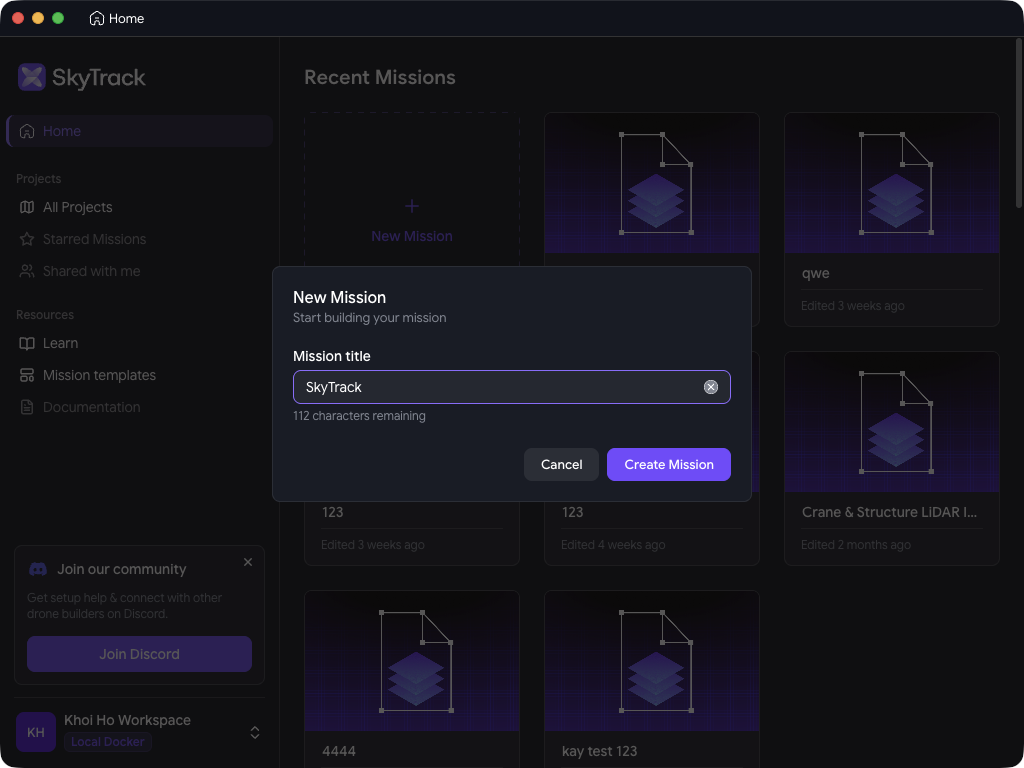
In New Mission, enter a Mission title, then select Create Mission.
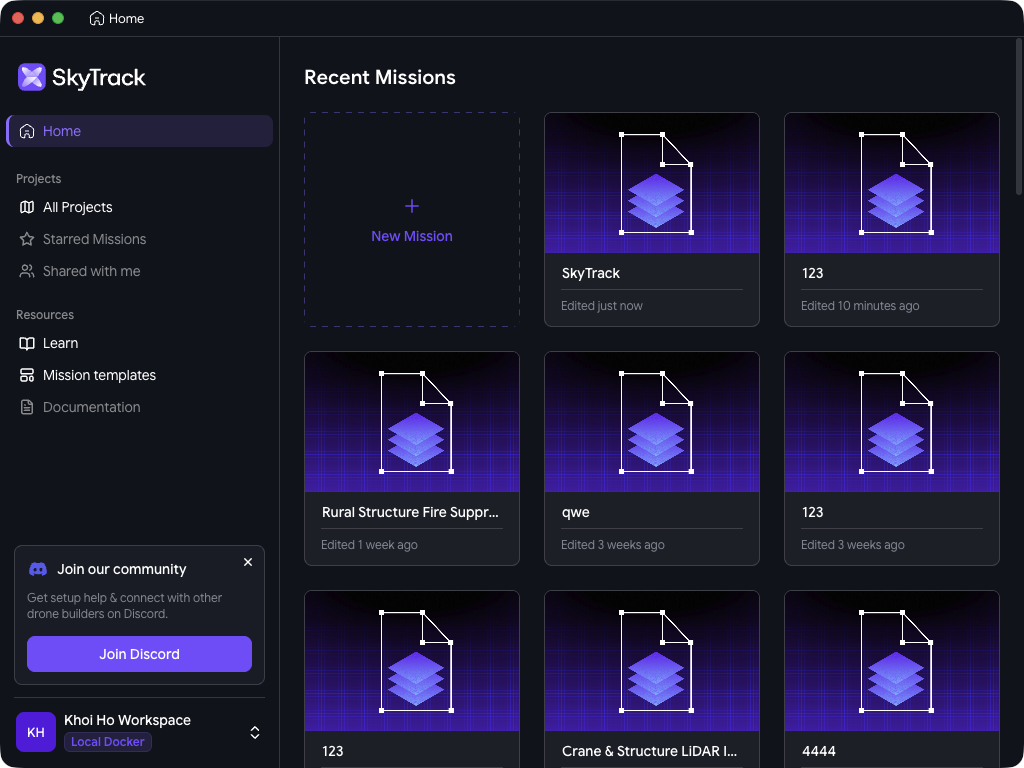
SkyTrack returns to Home and displays the new mission under Recent Missions. Open that mission to start its local simulation preparation.
Select a Project to save new Mission associates the mission with an existing project or gives you a way to create one.
New Project requires only a project title before the project can be created.
New Mission requires a mission title before the mission can be created.
After creation, the mission appears in Recent Missions. Open it to continue.
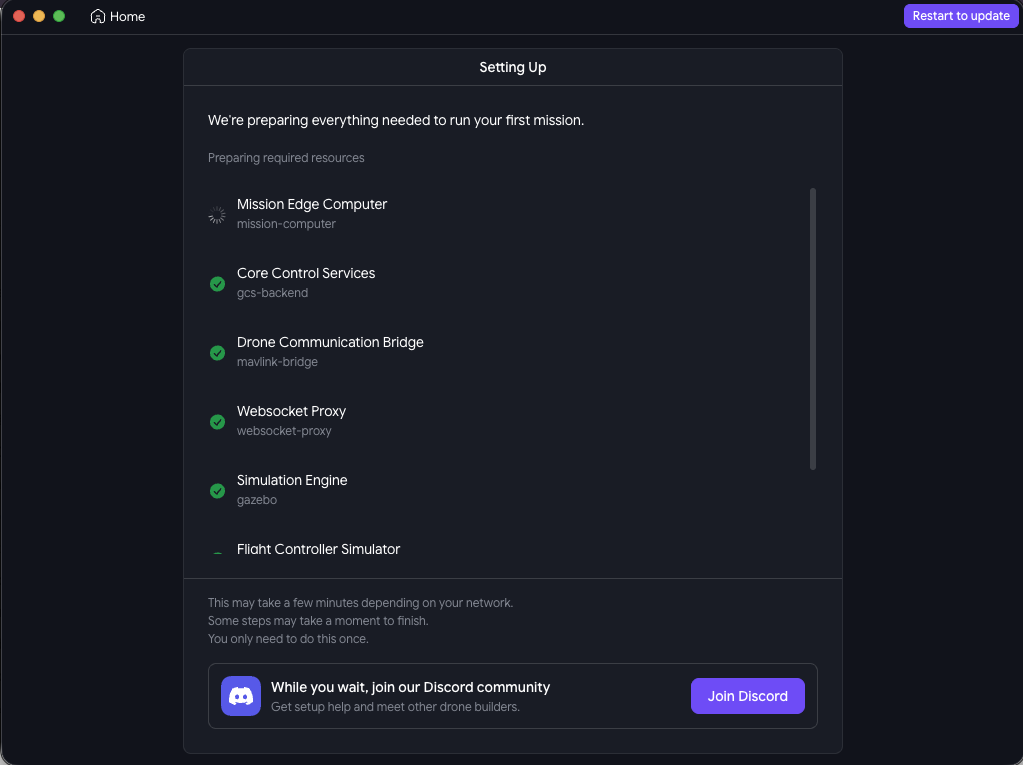
During preparation, SkyTrack sets up the simulation runtime, simulation engine, mission-to-simulation connector, and environment data. It may take a few minutes depending on your network and system.
If setup fails
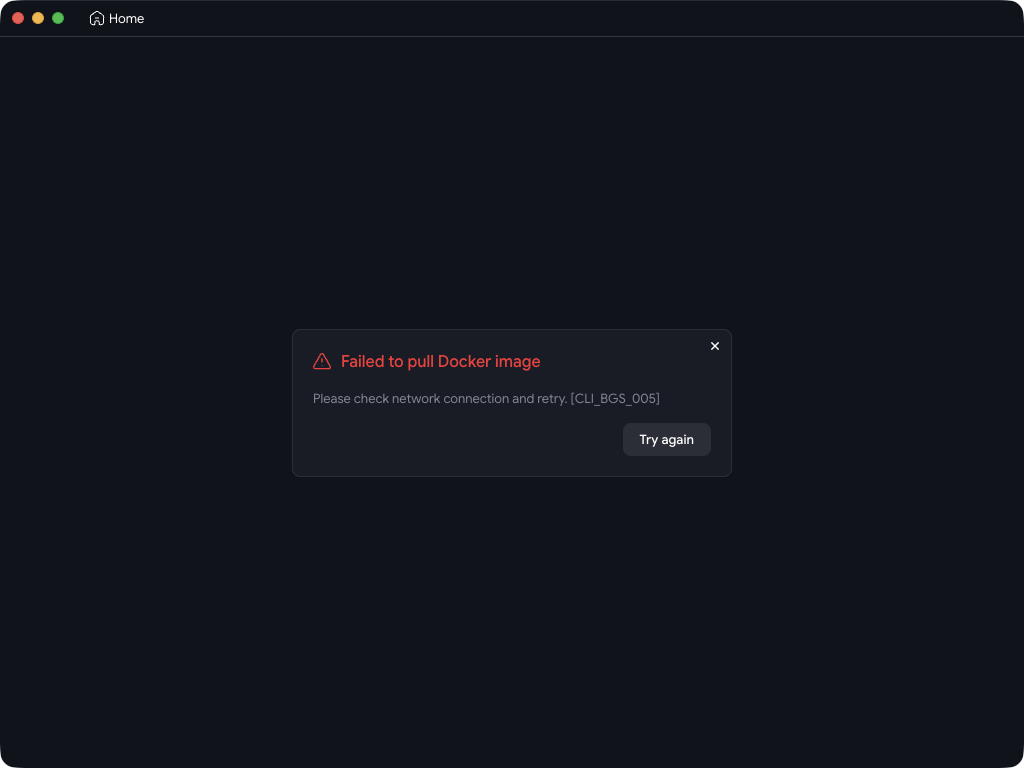
Docker image pull failed: Check your network connection, then select Try again. The current client displays error code CLI_BGS_005 for this condition.
Next steps
Once setup is complete, you can:
Create a new mission
Import an existing mission from a local file
Start exploring mission simulation
Continue to the Missions section to learn how to create or import your first mission.
Join Discord community to explore what other builders are building