
Want to move faster in SkyTrack? This guide walks you through the key keyboard and mouse shortcuts to navigate the 3D environment and run simulation missions with ease.
Overview
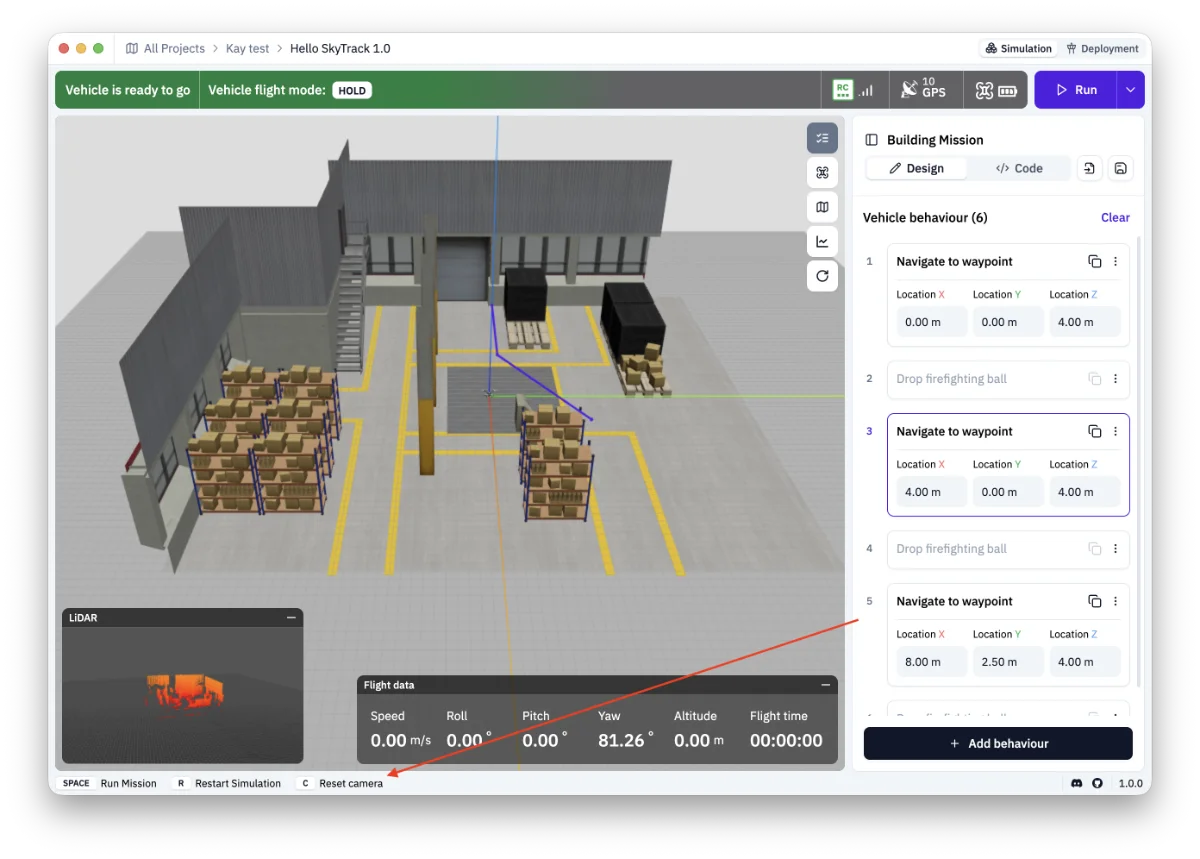
The bottom status bar surfaces the most critical shortcuts depending on your current context. The tables below provide an exhaustive, searchable list of all available commands.
Simulation Controls
These controls manage the playback state of the active vehicle simulation.
Shortcuts | Action | Context |
|---|---|---|
Space | Run mission | Available when vehicle is ready or paused |
R | Restart simulation | Resets the current simulation to the beginning |
Viewport & Camera Controls
Use these controls to navigate the 3D simulation environment and inspect your mission path.
Shorcut/Input | Action | Description |
|---|---|---|
| Reset Camera | Snaps the 3D viewport back to the default origin view |
| Rotate Camera | Adjusts the viewing angle around the focal point |
| Zoom In/Out | Adjusts the proximity of the camera to the focal point |
| Pan Camera | Moves the 3D grid laterally across the viewport |
Application Panels & Windows
Use these shortcuts to quickly toggle or open specific UI panels.
Shortcut | Action | Description |
|---|---|---|
| Edit missions | Opens the Building Mission panel |
| Select vehicle model | Opens the Selecting Vehicle panel |
| Select world | Opens the Selecting World panel |
| View mission report | Opens the Report window |
Mission Building Editor
When the Building Mission panel is active (e.g., after pressing E), these shortcuts accelerate editing vehicle behaviors.
Shortcut | Action | Description |
|---|---|---|
| Select All Behaviors | Selects all behaviors for the next actions |
| Duplicate Behavior | Duplicates the currently selected behavior step |
| Delete Behavior | Removes the currently selected behavior step |
| Reorder Behavior | Moves the position of the selected behavior up or down the listen |
Now jump in and try it in SkyTrack platform
Explore missions from other builders in Discord